General
- Enable/disable features globally; toggle quick actions in the Command Palette.
How to install, configure, and use RDF editing in VS Code with Turtle and JSON-LD validation, SHACL selection and coverage, vocabulary-aware autocomplete and hover information, JSON-LD processing, and Triple Management. The demos are in GIFs — click any to enlarge.
rdfusion-x.y.z.vsix.
The extension activates automatically when you open a
.ttl (Turtle) or .jsonld (JSON-LD)
file.
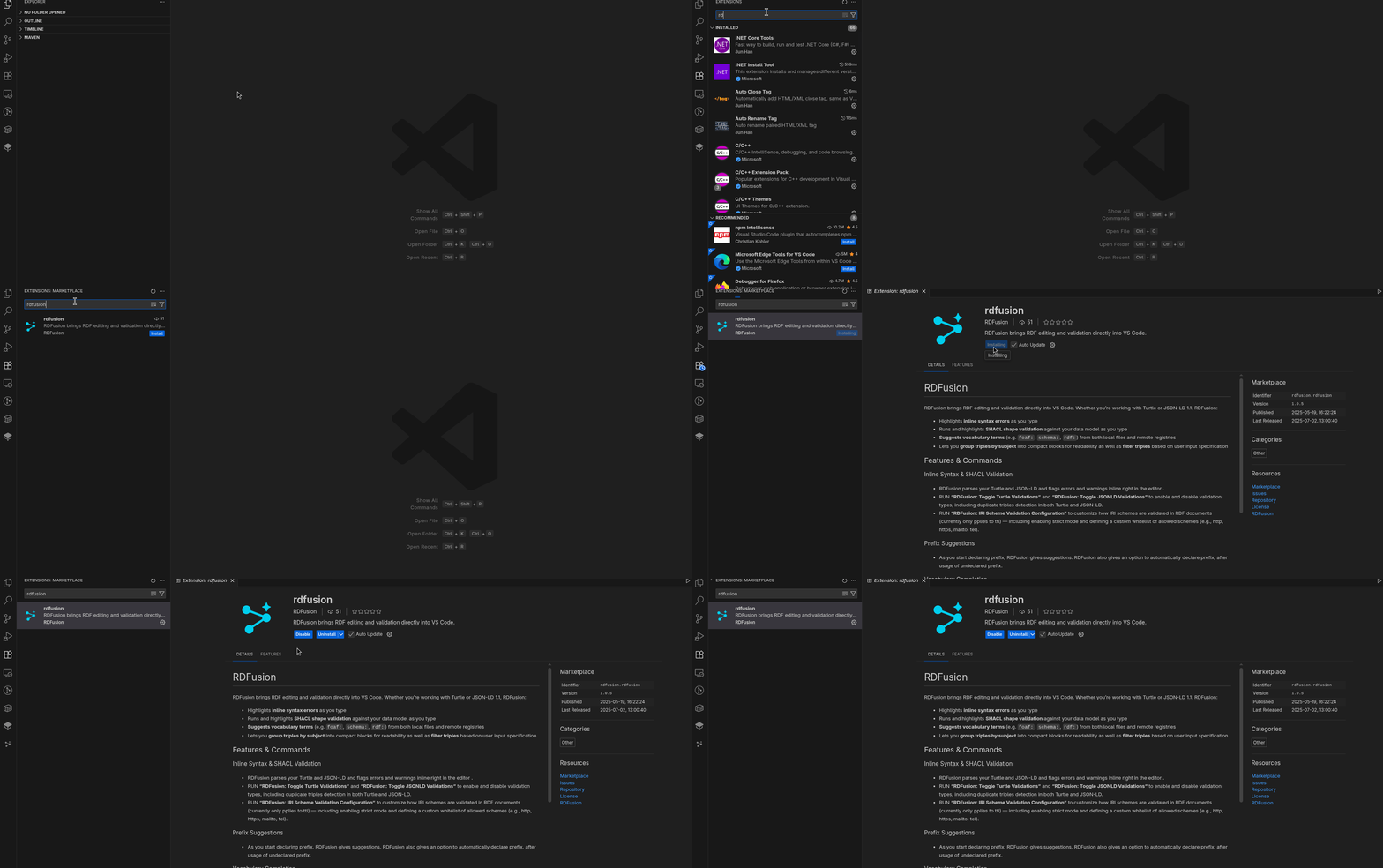
.ttl or .jsonld file.
foaf:) or start
authoring a triple. Autocomplete and validation appear as you
type.
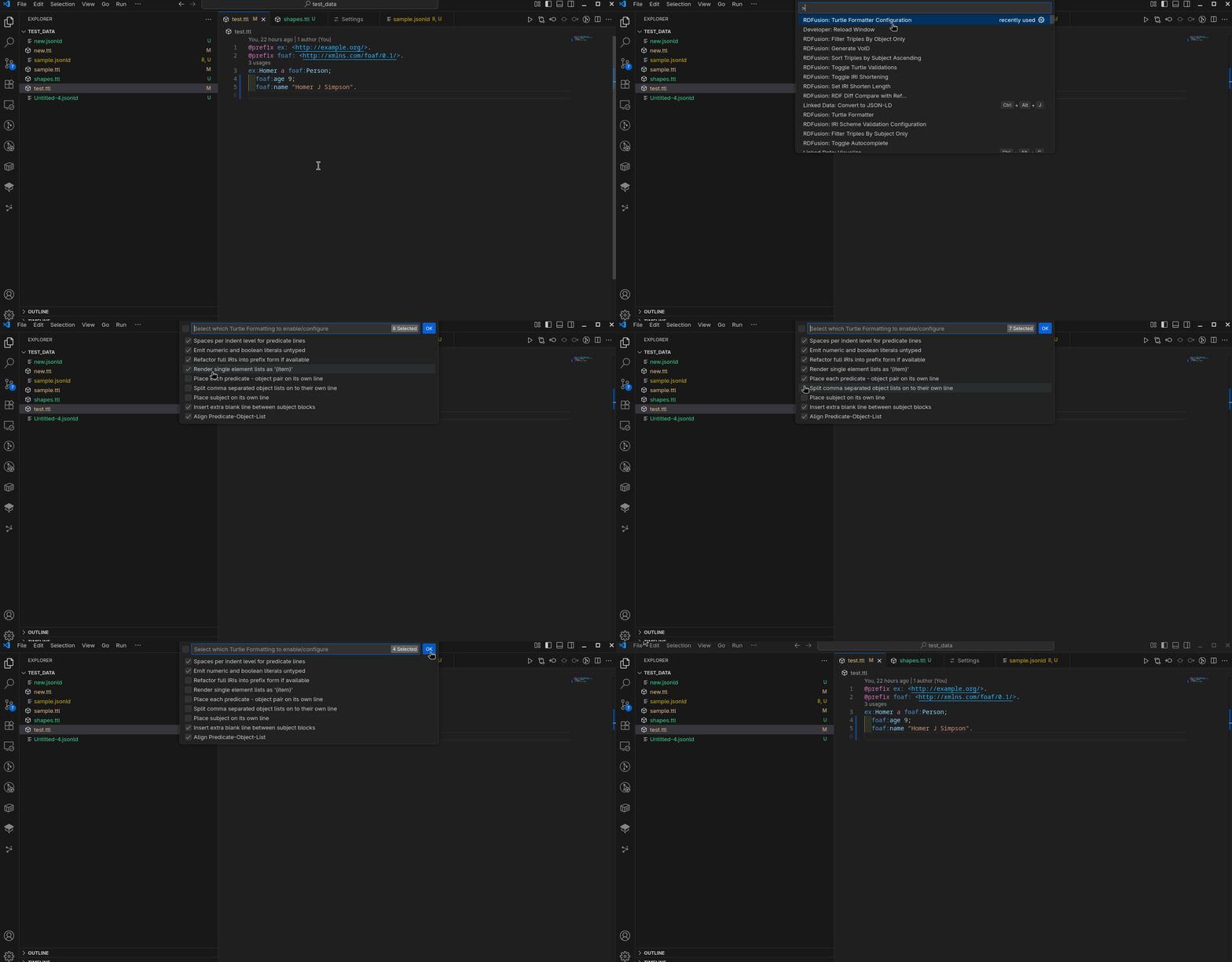
RDFusion exposes settings in File → Preferences → Settings (search “RDFusion”) or via settings.json. Configurations are also available through the Command Palette.
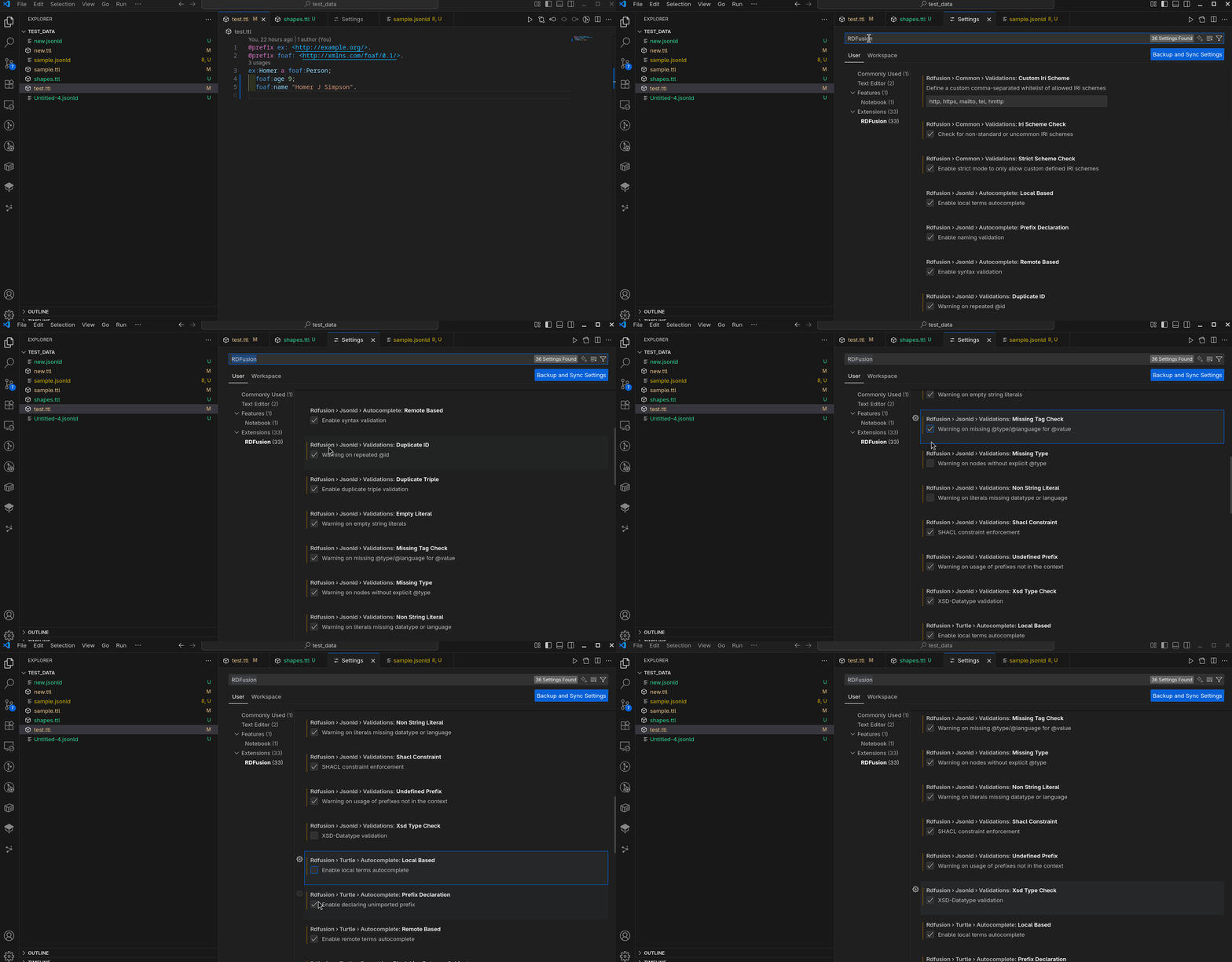
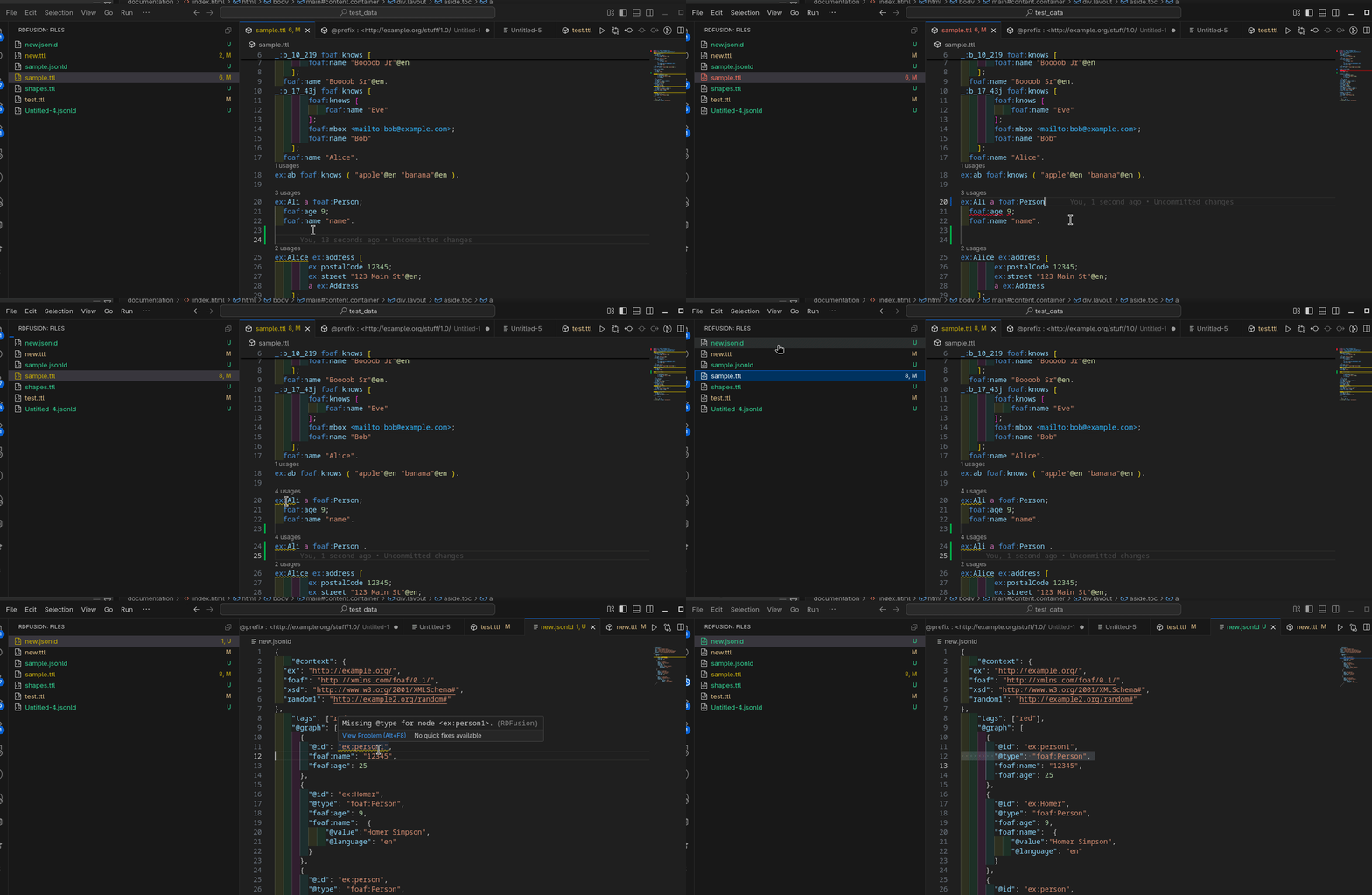
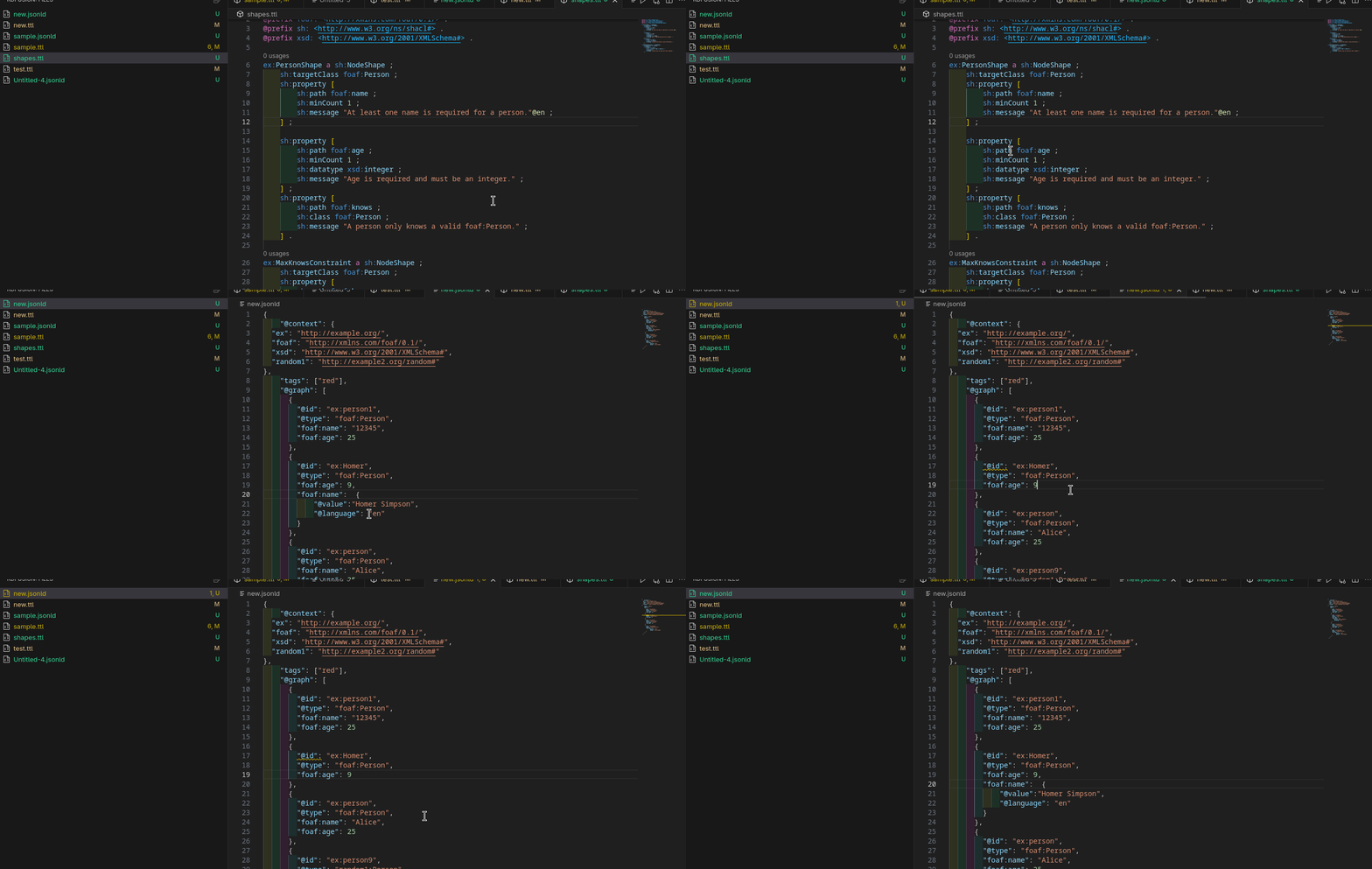
As you edit, RDFusion validates Turtle and JSON-LD documents, applies enabled quality checks, and can run SHACL validation from workspace shapes. Diagnostics are shown inline in VS Code.
Syntax errors, undefined prefixes, literal/datatype issues, IRI scheme problems, duplicate triples, and selected JSON-LD structural issues are underlined as you type.
If your workspace contains SHACL shapes, RDFusion can apply them automatically. Use Configure SHACL Selection when a workspace has many shapes and you want to validate only the relevant shape files, shapes, targets, or properties. Use Show SHACL Coverage to inspect which data fields are covered by selected shapes.
Use the Command Palette or Settings to enable or disable checks. Basic parsing errors are prioritized; deeper checks run when syntax is corrected. Remote vocabulary checks are cached and best-effort.
See Configuration & Settings to enable/disable validations.
@prefix ex: <http://example.org/> .
@prefix foaf: <http://xmlns.com/foaf/0.1/> .
ex:Homer a foaf:Person ;
foaf:name "Homer Simpson" ;
foaf:age 39 .
ex:Bart a foaf:Person ;
foaf:name "Bart Simpson" .
@prefix ex: <http://example.org/> .
@prefix foaf: <http://xmlns.com/foaf/0.1/> .
@prefix sh: <http://www.w3.org/ns/shacl#> .
@prefix xsd: <http://www.w3.org/2001/XMLSchema#> .
ex:PersonShape a sh:NodeShape ;
sh:targetClass foaf:Person ;
sh:property [
sh:path foaf:name ;
sh:minCount 1 ;
sh:message """At least one name is
required for a person."""@en ;
] ;
sh:property [
sh:path foaf:age ;
sh:minCount 1 ;
sh:datatype xsd:integer ;
sh:message """Age is required and
must be an integer."""@en ;
] .
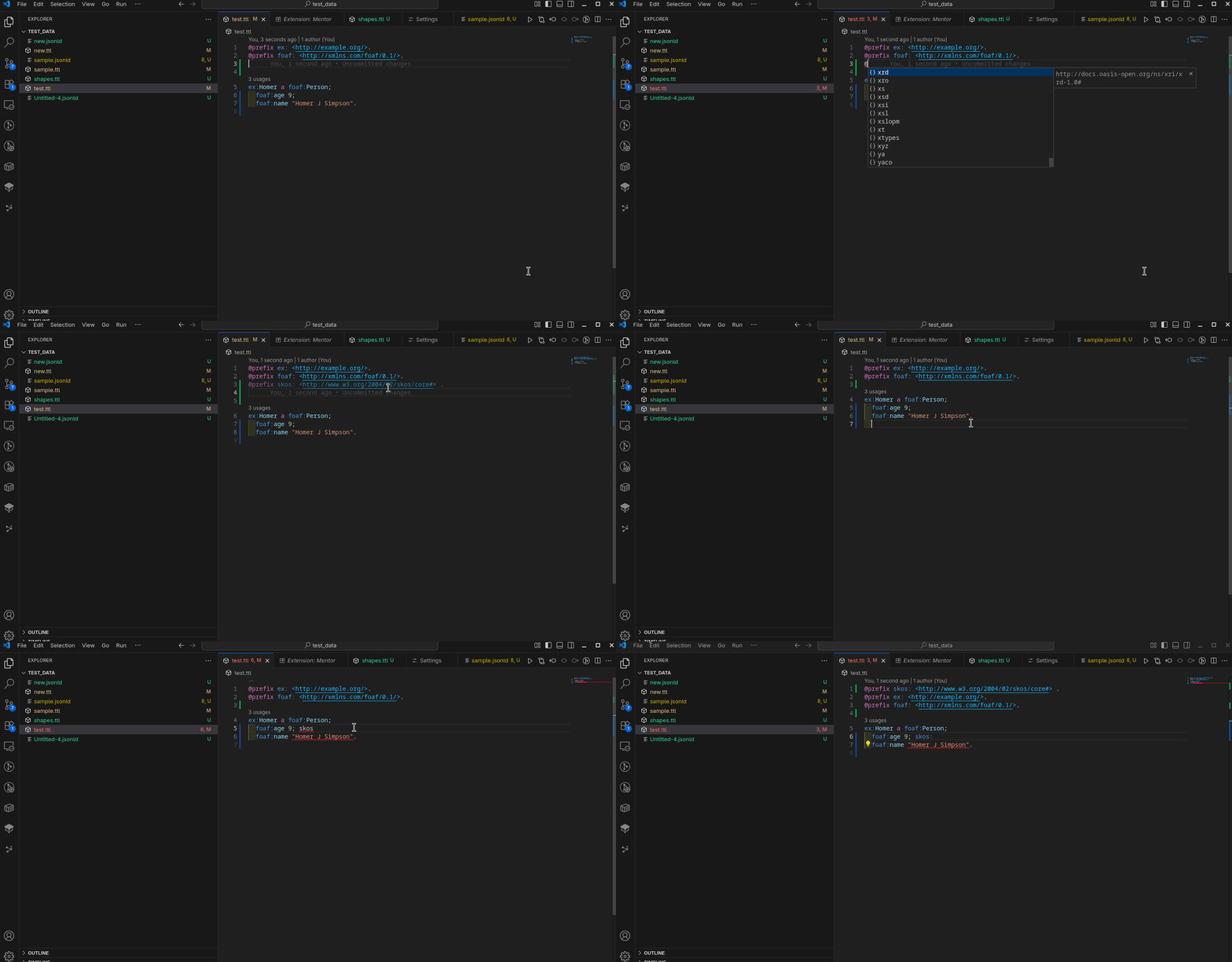
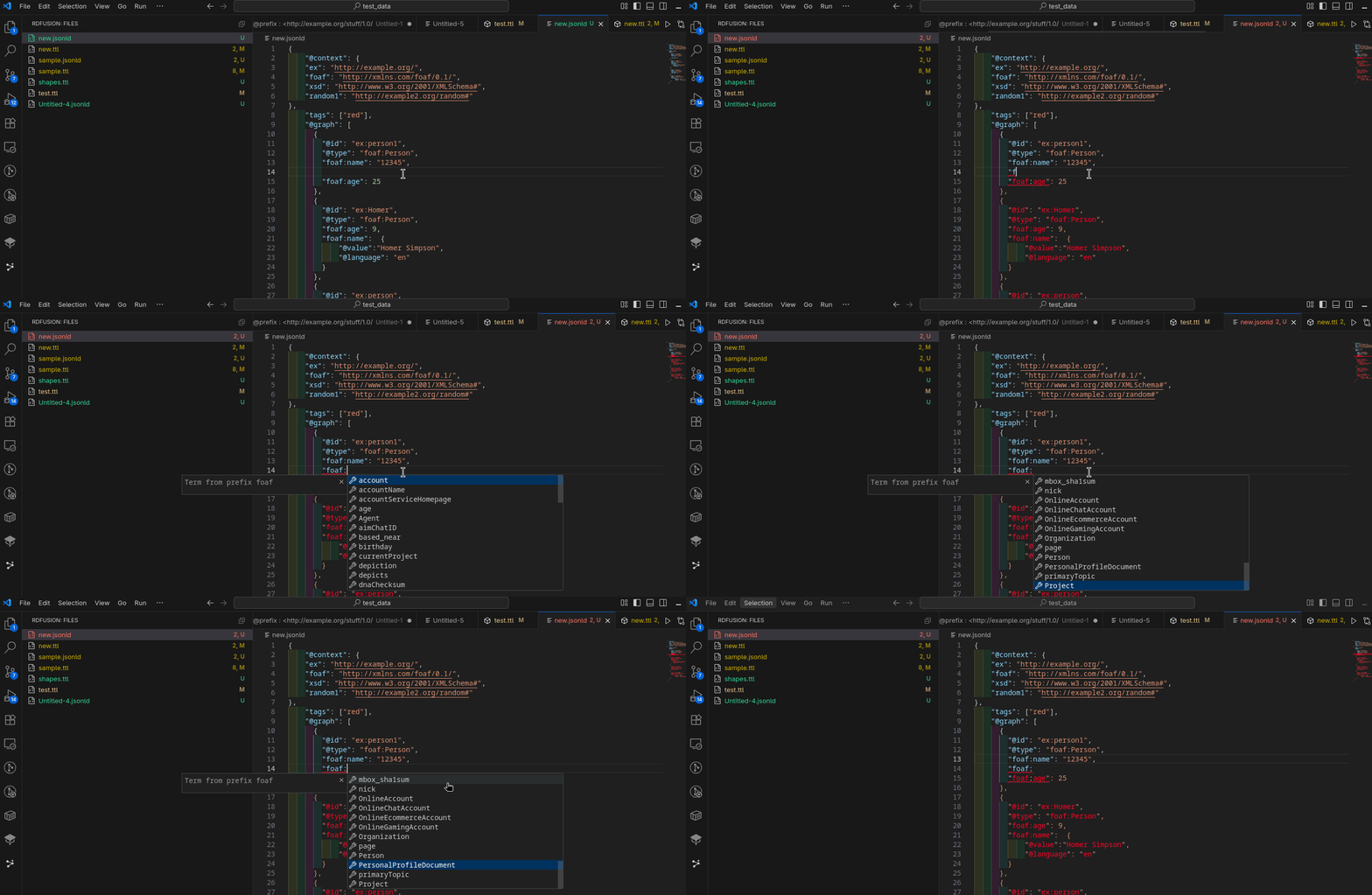
prefix: (e.g.,
foaf:) shows terms.
@context or a compact IRI
shows terms and ensures prefixes are declared.
Terms come from open workspace files, JSON-LD contexts, known prefixes, and remote vocabularies when available. Remote vocabulary results are cached and used for suggestions, hover information, and typo warnings.
Hover and completion documentation is organized into compact sections. When vocabulary metadata is available, RDFusion can show the term label, clickable IRI, definition, type, domain, range, subclass or subproperty relations, inverse/equivalent terms, status, selected SHACL guidance, and useful references. Missing fields are simply omitted to avoid noisy output.
Suggestions are context-aware in Turtle triples, prefix
declarations, JSON-LD compact IRIs, and JSON-LD
@context mappings.
Accepting a completion for an undeclared prefix auto-adds
@prefix (Turtle) or a context entry (JSON-LD).
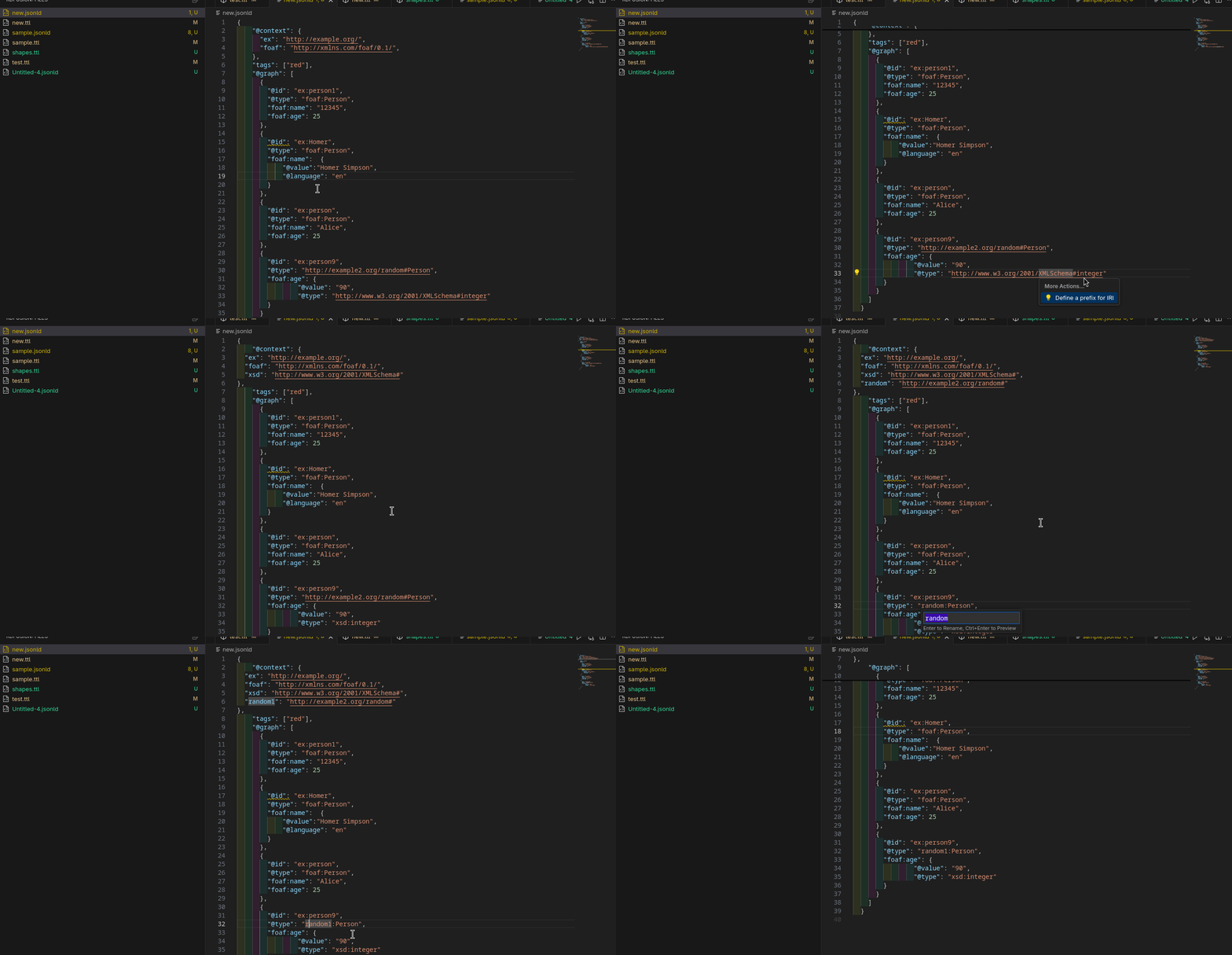
Compact IRIs across your JSON-LD file. The refactor updates
@context and rewrites matches.
Disable remote lookups when offline, adjust auto-declare options, and choose whether local or remote suggestions are used.
@prefix ex: <http://example.org/> .
@prefix foaf: <http://xmlns.com/foaf/0.1/> .
ex:Homer a foaf:Person ;
foaf:name "Homer Simpson" ;
foaf:age 39 .
{
"@context": {
"ex": "http://example.org/",
"foaf": "http://xmlns.com/foaf/0.1/"
},
"@id": "ex:Homer",
"@type": "foaf:Person",
"foaf:name": "Homer Simpson",
"foaf:age": 39
}
RDFusion provides JSON-LD commands for common processing tasks. These commands operate on the current JSON-LD document and open the result in VS Code for inspection or reuse.
Triple Management commands help inspect, organize, compare, and reuse RDF files without leaving VS Code. Turtle-specific commands include formatting, grouping, sorting, RDF diff, visual IRI shortening, and Unicode escape normalization. Shared RDF commands include filtering, merging, and VoID generation.
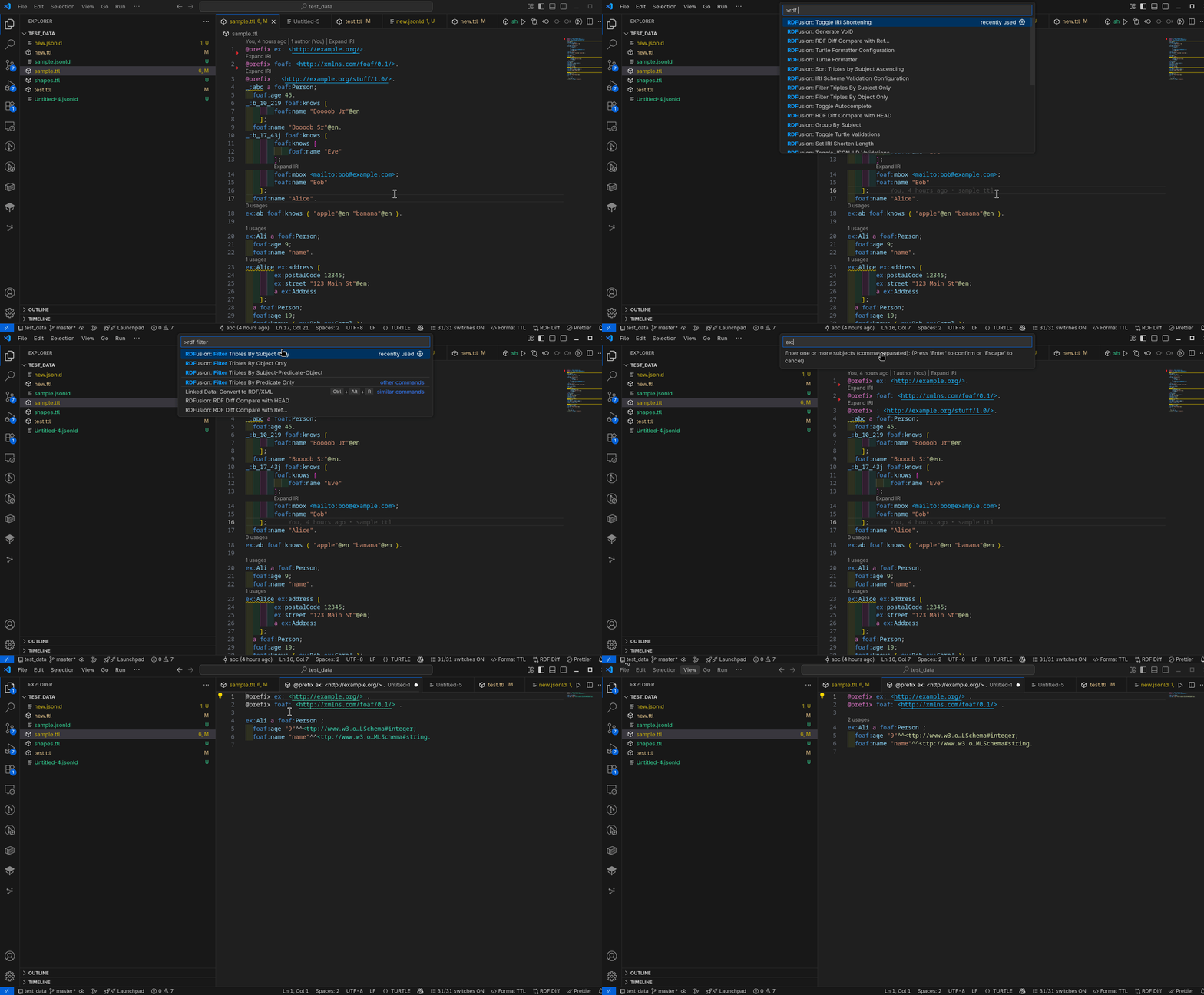
Use Command Palette → RDFusion: Filter Triples by … to generate a new tab containing only matching triples. Filtering can focus by subject, predicate, object, or a combined pattern.
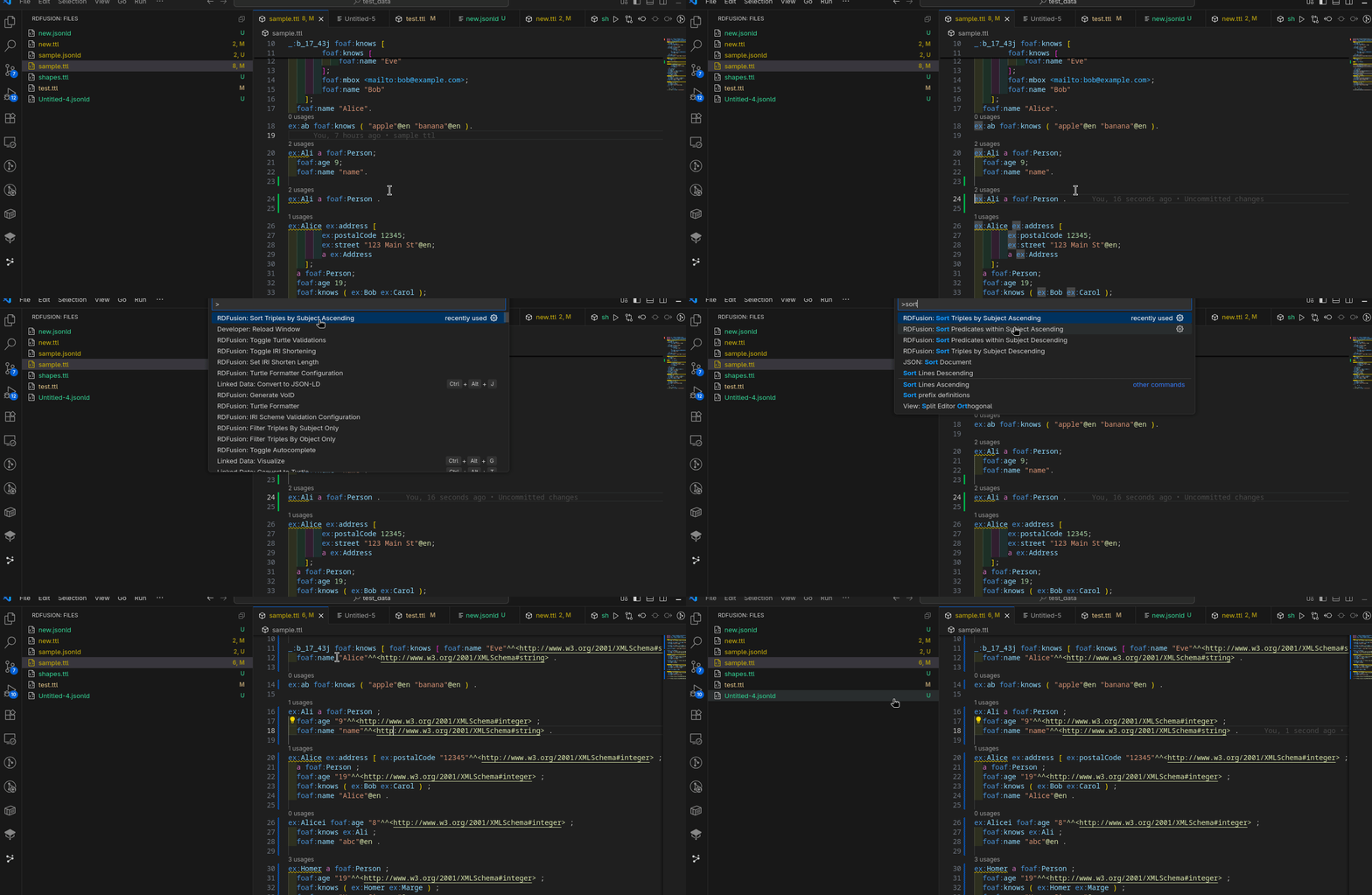
Group by Subject groups triples under their subject; Sort Triples orders triples for cleaner look.
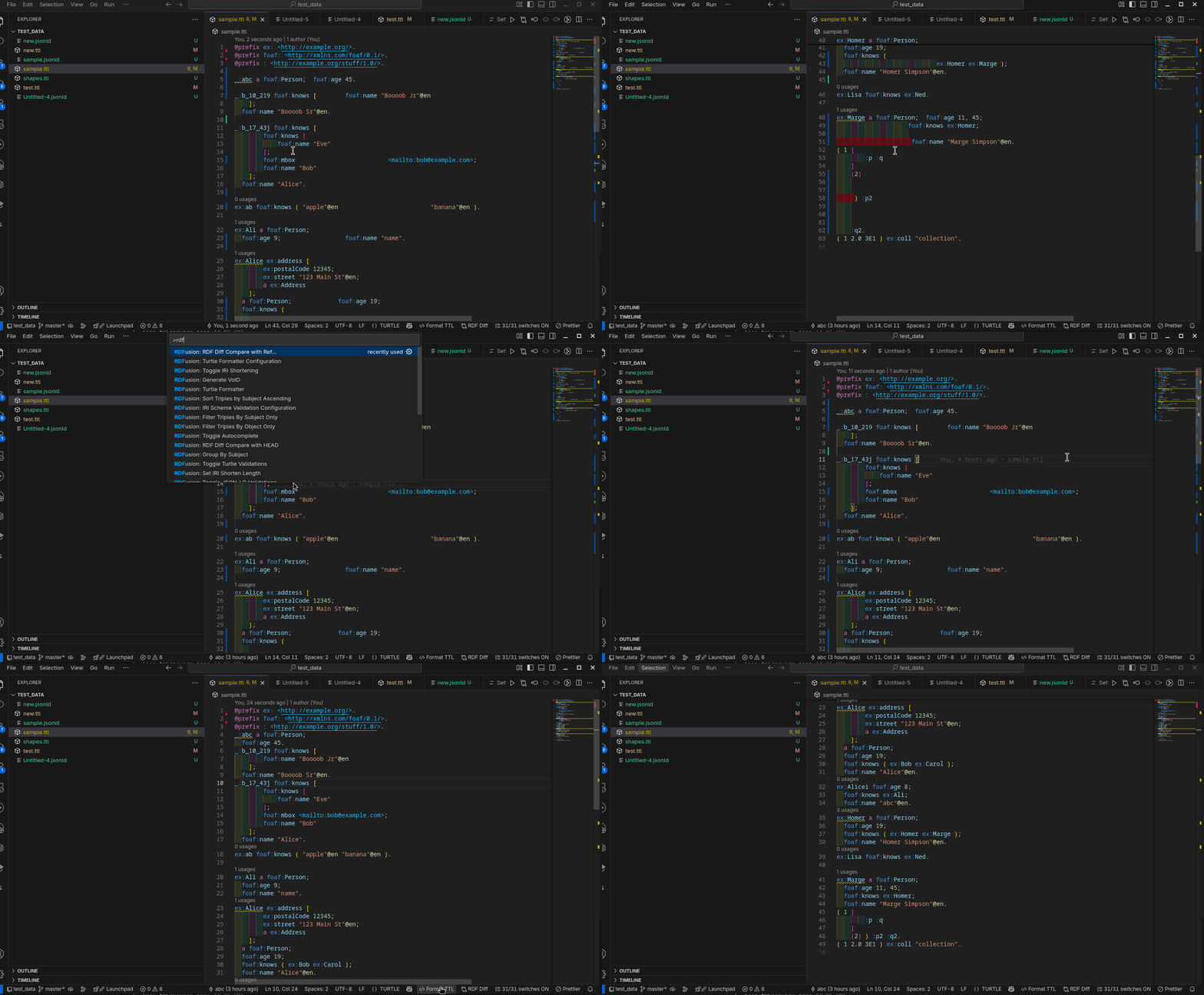
Use RDFusion: Turtle Formatter to apply consistent indentation, subject grouping, predicate layout, object list wrapping, known-prefix compaction, and numeric/boolean literal formatting based on your settings.
Toggle visual shortening for long IRIs (e.g.,
http://example.org/.../Concept). This improves
readability without changing file content.

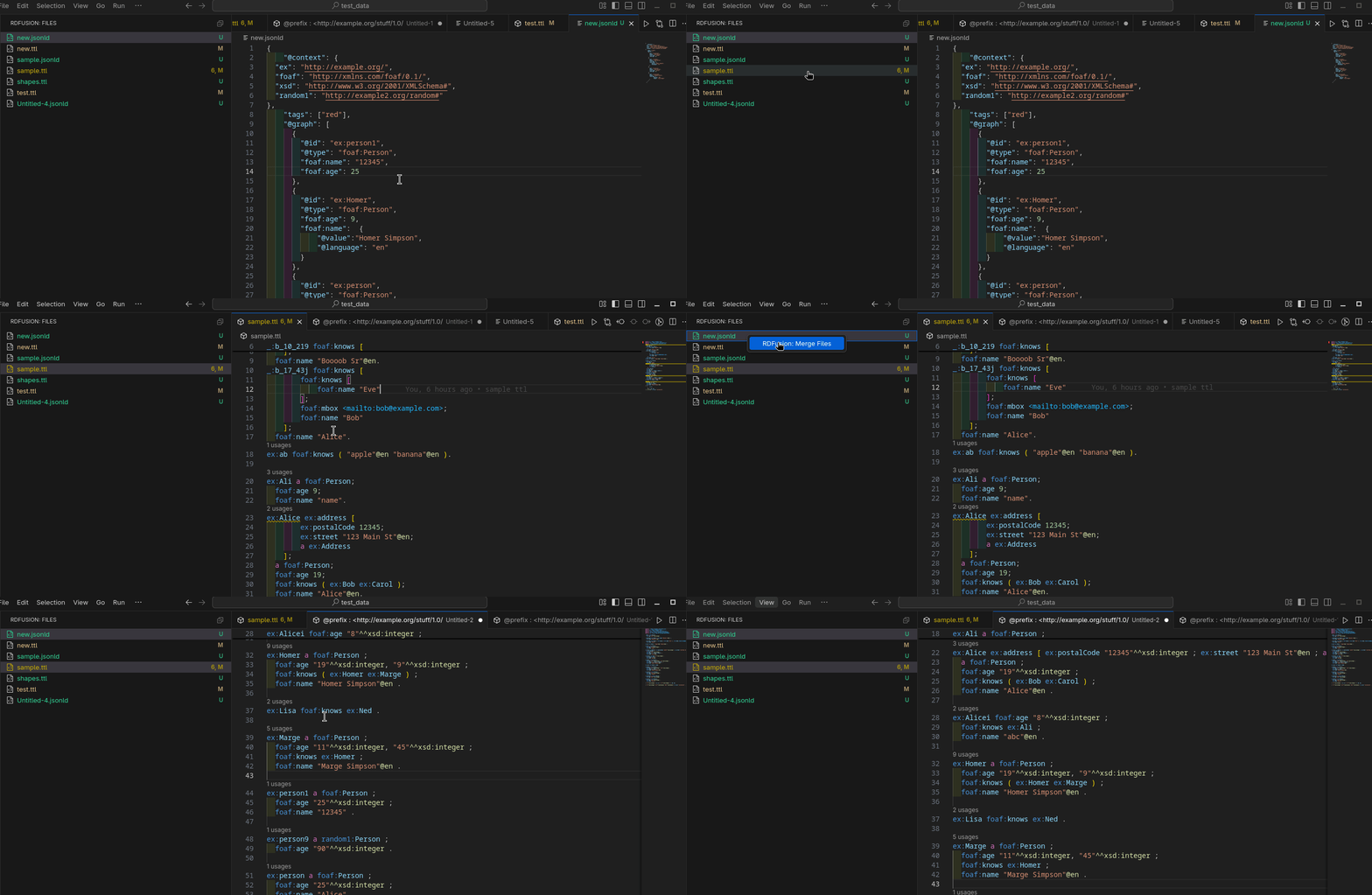
Select multiple RDF files and run RDFusion: Merge Files. The result is a single grouped Turtle document opened in a new tab.
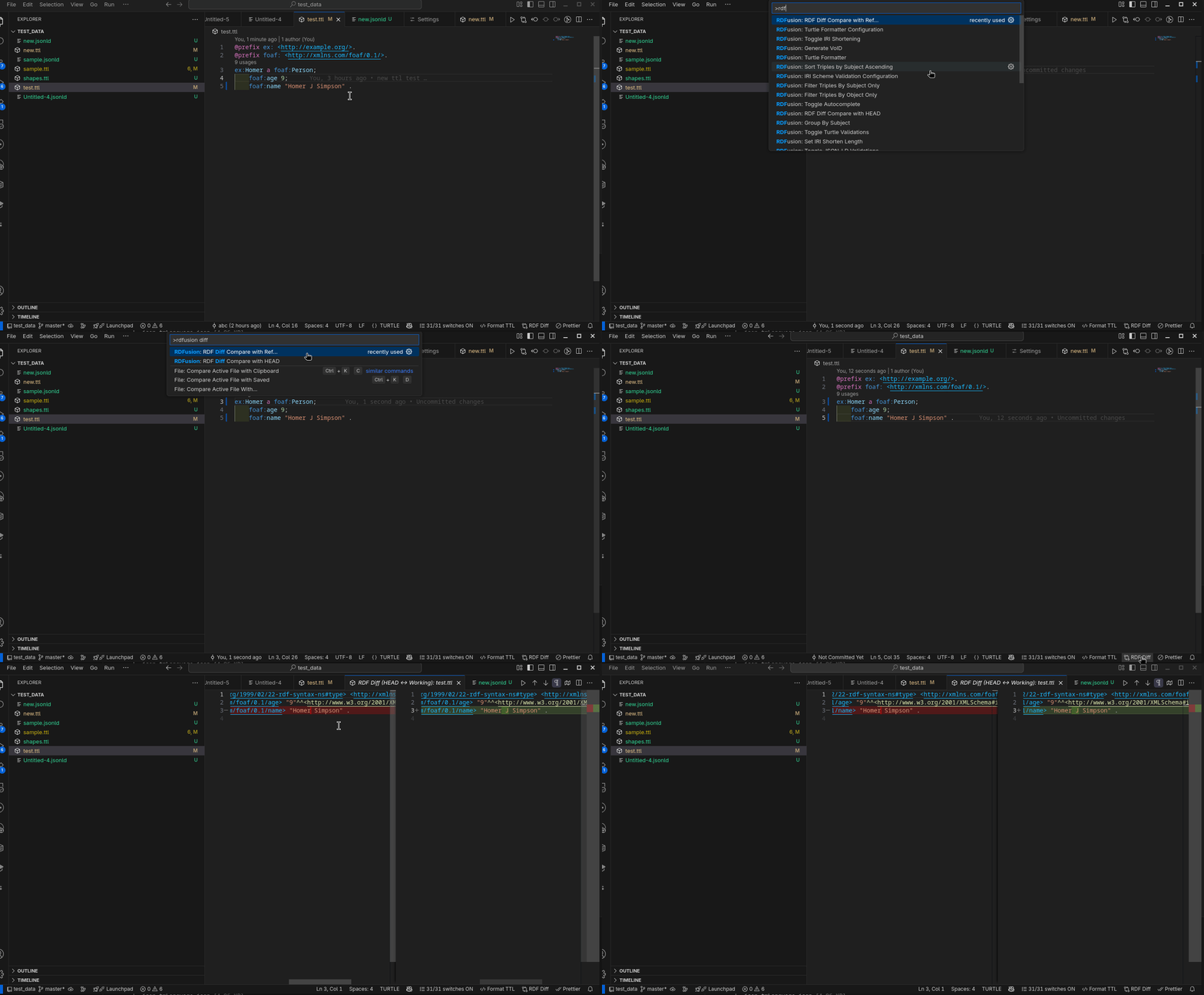
Compare the current Turtle file with HEAD or a specific Git reference. The diff view compares parsed RDF triples instead of only line-by-line text changes.
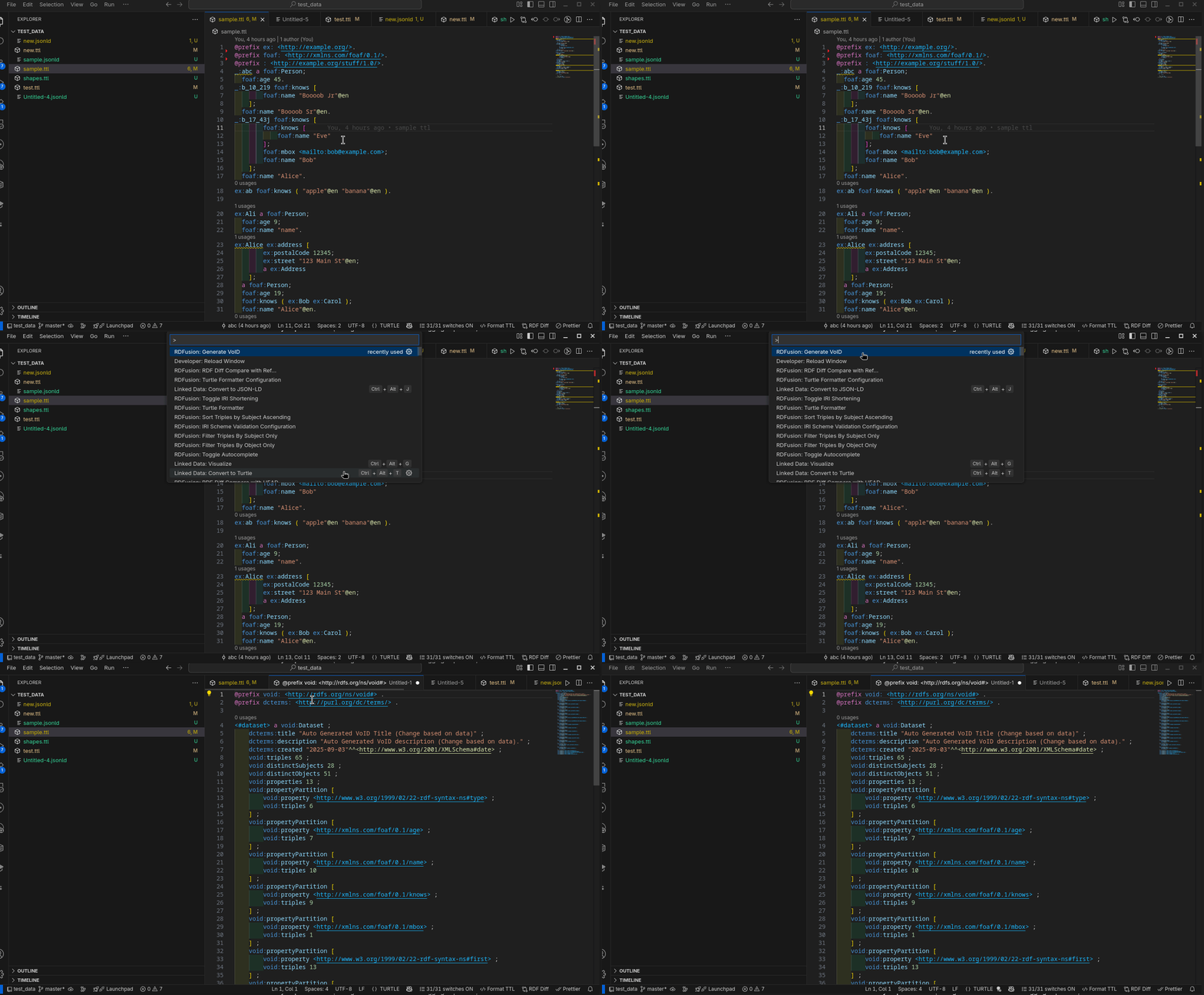
Run RDFusion: Generate VoID to compute dataset-level counts such as triples, distinct subjects and objects, and classes. The result opens as a VoID Turtle description in a new tab.
Use Encode Turtle Unicode Escapes or Decode Turtle Unicode Escapes when you need to switch between escaped Unicode sequences and readable characters in Turtle string literals or IRIs.